 [View a larger version of this image](/images/account-info.png)
The Vendor Portal automatically adds your GitHub username to the collab repository and assigns it the Admin role. You receive an email with details about the collab repository when you are added.
1. Follow the collab repository link from the email that you receive to log in to your GitHub account and access the repository.
1. (Recommended) Manually remove any users in the collab repository that were previously added through GitHub.
:::note
If a team member adds a GitHub username to their Vendor Portal account that already exists in the collab repository, then the Vendor Portal does _not_ change the role that the existing user is assigned in the collab repository.
However, if the RBAC policy assigned to this member in the Vendor Portal later changes, or if the member is removed from the Vendor Portal team, then the Vendor Portal updates or removes the user in the collab repository accordingly.
:::
1. (Optional) In the Vendor Portal, go to the [Team](https://vendor.replicated.com/team/members) page. For each team member, click **Edit permissions** as necessary to specify their GitHub role in the collab repository.
For information about which policies to select, see [About GitHub Roles](#about-github-roles).
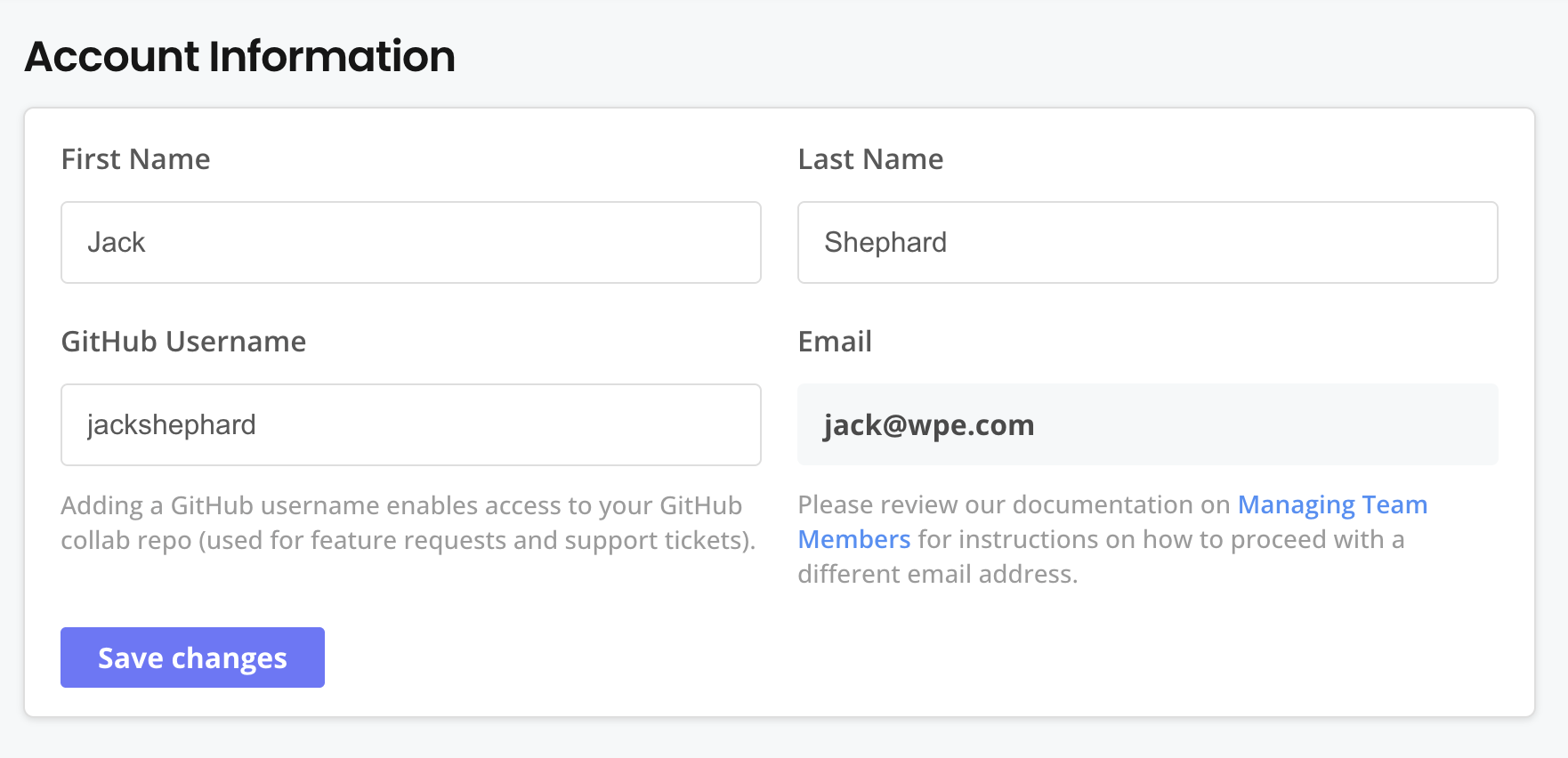
1. Instruct each Vendor Portal team member to add their GitHub username to the [Account Settings](https://vendor.replicated.com/account-settings) page in the Vendor Portal.
The Vendor Portal adds the username to the collab repository and assigns a GitHub role to the user based on their Vendor Portal policy.
Users receive an email when they are added to the collab repository.
## About GitHub roles
When team members add a GitHub username to their Vendor Portal account, the Vendor Portal determines how to assign the user a default GitHub role in the collab repository based on the following criteria:
* If the GitHub username already exists in the collab repository
* The RBAC policy assigned to the member in the Vendor Portal
You can also update any custom RBAC policies in the Vendor Portal to change the default GitHub roles for those policies.
### Default roles for existing users {#existing-username}
If a team member adds a GitHub username to their Vendor Portal account that already exists in the collab repository, then the Vendor Portal does _not_ change the role that the existing user is assigned in the collab repository.
However, if the RBAC policy assigned to this member in the Vendor Portal later changes, or if the member is removed from the Vendor Portal team, then the Vendor Portal updates or removes the user in the collab repository accordingly.
### Default role mapping {#role-mapping}
When team members add a GitHub username to their Vendor Portal account, the Vendor Portal assigns them to a GitHub role in the collab repository that corresponds to their Vendor Portal policy. For example, users with the default Read Only policy in the Vendor Portal are assigned the Read GitHub role in the collab repository.
For team members assigned custom RBAC policies in the Vendor Portal, you can edit the custom policy to change their GitHub role in the collab repository. For more information, see [About Changing the Default GitHub Role](#custom) below.
The table below describes how each default and custom Vendor Portal policy corresponds to a role in the collab repository in GitHub. For more information about each of the GitHub roles described in this table, see [Permissions for each role](https://docs.github.com/en/organizations/managing-user-access-to-your-organizations-repositories/repository-roles-for-an-organization#permissions-for-each-role) in the GitHub documentation.
[View a larger version of this image](/images/account-info.png)
The Vendor Portal automatically adds your GitHub username to the collab repository and assigns it the Admin role. You receive an email with details about the collab repository when you are added.
1. Follow the collab repository link from the email that you receive to log in to your GitHub account and access the repository.
1. (Recommended) Manually remove any users in the collab repository that were previously added through GitHub.
:::note
If a team member adds a GitHub username to their Vendor Portal account that already exists in the collab repository, then the Vendor Portal does _not_ change the role that the existing user is assigned in the collab repository.
However, if the RBAC policy assigned to this member in the Vendor Portal later changes, or if the member is removed from the Vendor Portal team, then the Vendor Portal updates or removes the user in the collab repository accordingly.
:::
1. (Optional) In the Vendor Portal, go to the [Team](https://vendor.replicated.com/team/members) page. For each team member, click **Edit permissions** as necessary to specify their GitHub role in the collab repository.
For information about which policies to select, see [About GitHub Roles](#about-github-roles).
1. Instruct each Vendor Portal team member to add their GitHub username to the [Account Settings](https://vendor.replicated.com/account-settings) page in the Vendor Portal.
The Vendor Portal adds the username to the collab repository and assigns a GitHub role to the user based on their Vendor Portal policy.
Users receive an email when they are added to the collab repository.
## About GitHub roles
When team members add a GitHub username to their Vendor Portal account, the Vendor Portal determines how to assign the user a default GitHub role in the collab repository based on the following criteria:
* If the GitHub username already exists in the collab repository
* The RBAC policy assigned to the member in the Vendor Portal
You can also update any custom RBAC policies in the Vendor Portal to change the default GitHub roles for those policies.
### Default roles for existing users {#existing-username}
If a team member adds a GitHub username to their Vendor Portal account that already exists in the collab repository, then the Vendor Portal does _not_ change the role that the existing user is assigned in the collab repository.
However, if the RBAC policy assigned to this member in the Vendor Portal later changes, or if the member is removed from the Vendor Portal team, then the Vendor Portal updates or removes the user in the collab repository accordingly.
### Default role mapping {#role-mapping}
When team members add a GitHub username to their Vendor Portal account, the Vendor Portal assigns them to a GitHub role in the collab repository that corresponds to their Vendor Portal policy. For example, users with the default Read Only policy in the Vendor Portal are assigned the Read GitHub role in the collab repository.
For team members assigned custom RBAC policies in the Vendor Portal, you can edit the custom policy to change their GitHub role in the collab repository. For more information, see [About Changing the Default GitHub Role](#custom) below.
The table below describes how each default and custom Vendor Portal policy corresponds to a role in the collab repository in GitHub. For more information about each of the GitHub roles described in this table, see [Permissions for each role](https://docs.github.com/en/organizations/managing-user-access-to-your-organizations-repositories/repository-roles-for-an-organization#permissions-for-each-role) in the GitHub documentation.
| Vendor Portal Role | GitHub collab Role | Description |
|---|---|---|
| Admin | Admin | Members assigned the default Admin role in the Vendor Portal are assigned the GitHub Admin role in the collab repository. |
| Support Engineer | Triage | Members assigned the custom Support Engineer role in the Vendor Portal are assigned the GitHub Triage role in the collab repository. For information about creating a custom Support Engineer policy in the Vendor Portal, see Support Engineer in Configuring RBAC Policies. For information about editing custom RBAC policies to change this default GitHub role, see About Changing the Default GitHub Role below. |
| Read Only | Read | Members assigned the default Read Only role in the Vendor Portal are assigned the GitHub Read role in the collab repository. |
| Sales | N/A | Users assigned the custom Sales role in the Vendor Portal do not have access to the collab repository. For information about creating a custom Sales policy in the Vendor Portal, see Sales in Configuring RBAC Policies. For information about editing custom RBAC policies to change this default GitHub role, see About Changing the Default GitHub Role below. |
Custom policies with **/admin under allowed: |
Admin |
By default, members assigned to a custom RBAC policy that specifies For information about editing custom RBAC policies to change this default GitHub role, see About Changing the Default GitHub Role below. |
Custom policies without **/admin under allowed: |
Read Only |
By default, members assigned to any custom RBAC policies that do not specify For information about editing custom RBAC policies to change this default GitHub role, see About Changing the Default GitHub Role below. |